How to Merge Two Photos Online Into One
Merge two photos online into one is one of the most practical and common actions performed in our daily digital lives. You have two pictures taken during a vacation and wish to combine them and show in one. You have two pictures of yourself in a before-and-after fitness photo and want to show them in one picture. You have several pictures of your products in order to show them together in one frame within your website. You have several screenshots of a chat or tutorial that you need to merge in one picture.
The Photo Merge tool by ImageProEdit allows you to merge your images online for free, right in your web browser. No account is needed. No installation of any program is necessary. There’s no watermark on the final image. Just upload the pictures, pick a design, and download the output.
How to Merge Two Photos
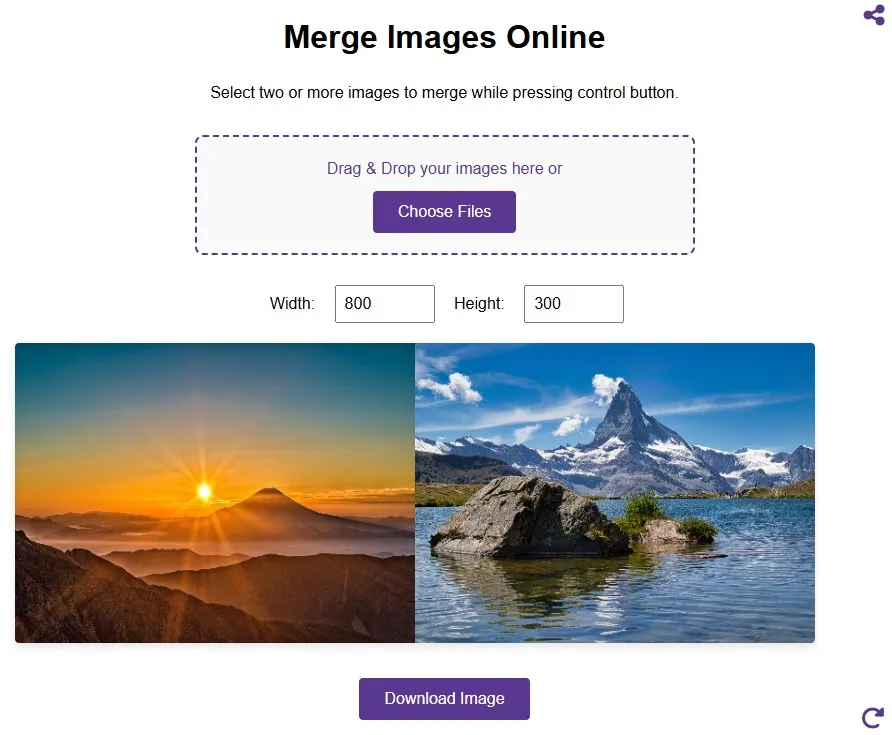
- Step 1: Open the Merge Images tool at imageproedit. The process takes under a minute:
- Step 2: Upload your photos. Click the upload area or drag and drop your photo files onto the page. The tool accepts JPG, JPEG, PNG, and WebP files. You can upload two or more pictures in a single session.
- Step 3: Set dimension. Set width and height of the combined photo according to your requirement.
- Step 4: Download your merged image. Click the merge button and download the output as a JPG file. No watermark is added.
Before and After Comparisons
Before and after comparison is where horizontal mergers work best. From the transformation of physical fitness through pictures, renovation of the house through before-and-after pictures, skin care transformations, transformations of hair color, garden transformation, automobile detailing, etc. – all these are more effective when put side by side in a single image. This means that putting the two pictures separately will force the user to have to scroll through both of them. But having them in one image makes the comparison easy.
There are several studies in the literature which show that posts of transformations done as a single image are more popular than separate photos of these posts.
Product Photography Variants
Multiple colors, sizes, and versions of the products often have to be presented in a single picture in e-commerce. A footwear item in three colors is much better represented in one combined image rather than three pictures that a customer will have to browse through. Product comparisons by variant also assist in the SEO process, as a single image featuring all variations is able to rank in searches by color.
Amazon and Etsy marketplaces permit only one featured image to be used in their listings. Using one image to depict all angles and variations of an item maximizes the visual data transfer that can be made through this one featured image.
Scientific and Medical Documentation
Merging side by side photos is an approach that is commonly used in academic writing, especially when dealing with case studies for medicine and science documentation. It involves merging images like histology slides of tissue before and after treatment, satellite photos that indicate land usage in two separate points of time, cross sections of rocks, or photos that indicate wound healing process.
Sports and Athletic Training
Performance coaches and personal trainers use side-by-side photo merging to document client progress, compare technique in two time periods, or show form corrections. A side-by-side of a squat form at week one versus week twelve, or a golf swing at address versus at impact, is more analytically useful than two separate photos because the viewer can scan between them instantly without losing their reference point.
Screenshot Stitching
Vertical image stitching is used the most in cases where the photo size is too large to be taken in one go through a screenshot. In other words, when a webpage, chat window, document or even a desktop screen becomes too large, it has to be shot several times and then merged vertically to create one long picture.
Chat conversations, emails that go on for several pages, comment sections from social media sites, website captures, legal papers, and error logs that take several steps are all typical examples of documents that can be sewn together this way. To get a flawless join when sewing vertically, it is best to set the spacing to zero.
Step-by-Step Tutorial Photos
The instructional material fits perfectly into just one merge. Four pictures of making a recipe (ingredients, preparation, cooking, plating), for instance, can be combined into just one picture that may be uploaded on Pinterest, food blogs, etc. Four pictures in a woodworking tutorial (measurements, cutting, assembling, finishing) will make more sense if combined together rather than uploading them separately.
Social Media Formats
Pinterest and Google Discovery give preference to tall pictures. The picture having the ratio of 2:3 or 1:3 occupies more space on the timeline vertically, thus, attracting more clicks and not getting scrolled away quickly. Two to three landscape pictures merged into one tall pin through vertical integration is an easy technique to create the required tall picture.
Grid Layouts: Multiple Pictures in One Frame
The grid arrangement uses rows and columns to arrange the images. In this layout, all photos are placed in cells of the same size. When there are four or more images to arrange, grid merging would be appropriate.
Product Catalogues
E-commerce sites which have a number of products within one collection or one product available in various forms use the grid photos to create one picture for the listing which conveys the variety of what is on sale. The example could be of a site selling handcrafted jewelry having twelve pendants in a 3×4 grid, stickers in one 4×4 grid or even a boutique showing all the colors of the same dress.
Mood Boards and Design Reference
Mood boards are created by designers, interior designers, fashion designers, and creative directors using grid merges. Grid merge makes the mood board presentable in an organized manner, which can be used for presentations to the clients without the need for any special design programs.
File Format Considerations: JPG vs PNG for Merged Images
Choosing the right output format for your merged picture affects quality, file size, and how the image behaves in different contexts.
JPG (JPEG): More suited for photos where colours merge smoothly and there’s no transparency involved. This format works wonders with photos, and the compressed photos have a small file size, making loading faster online. The drawback is that it’s a lossy compression format, but at high quality (between 85% and 95%), the quality remains impeccable.
PNG: Ideal format to use in case the combined image contains text, graphics, screenshots, or any other aspect having a transparent background. PNG is lossless, meaning that there will be no loss in terms of quality during compression process. PNG files are larger than JPEG files, however, when it comes to photos containing text or graphics, the difference in quality becomes apparent.
WebP: An advanced format that provides greater compression than either JPG or PNG. WebP is widely supported by all major web browsers and social media websites; hence, this format is ideal for small file size but at no cost to quality.
JPG is normally the best option for merge before and after pictures. However, when merging screenshots or product photos that have texts or logo’s, PNG is recommended. In cases where one is not sure, PNG is the best since it does not lose quality.
Add a Border After Merging for a Polished Finish
Once images are merged into a single frame, adding a border to the entire composition gives it a clean, finished appearance. A thin white border around the outside of the merged image creates breathing space between the composition and the background of the platform or page where it appears. A black border gives a bold, dramatic frame. The add border to image tool on ImageProEdit applies a uniform border of any width and colour around the entire merged picture after it is downloaded, completing the composition with minimal effort.
Use Cases by Profession and Context
Social Media Content Creators
Photo merging is common among content creators to compile several instances of the same photo shoot or events into one post. The photo blogger compiling the highlights of a photo shoot, the travel blogger combining several views of the same landscape, the food content creator merging the preparation and ready-to-eat dish pictures, etc., are just some common ways in which the technique is used. Image merging increases engagement as it gives the viewer more to see without putting extra effort on his part.
E-Commerce Sellers
The online sellers at Amazon, Etsy, Shopify, eBay, and independent merchants have adopted image merging techniques in their listing images for purposes of comparing and presenting variant products. For instance, before and after pictures of a cleaning product's results, size comparisons of clothes, a picture that presents the materials used together with the whole product, or color variants of a particular product can easily be presented in a merged picture.
Real Estate
Horizontal stitching is done by real estate agents and photographers for comparing interior views with exterior views or combining a floor plan with a photo of a room. Vertical stitching involves putting together several photographs of rooms to form one tall photograph for uploading on property listing websites. The third type of stitching is grid stitching.
Healthcare and Fitness
In the field of health and fitness, progress photographs are highly used in comparing results. Personal trainers, physiotherapists, dermatologists, beauty centers, and orthodontists record and compare progress before and after by posting the photographs side-by-side. The use of merged photos is more respectful of people's privacy compared to posting individual photos, especially the 'before' picture.
Education and Documentation
The process of vertical stacking is used by teachers, trainers, and technical writers when creating multi-level instructional images. A chemical experiment captured in six pictures, a method for making wood joints captured in four perspectives, or a computer instruction manual captured in ten pictures – all would be more effective as one combined image than individual pictures.
Architecture and Interior Design
The job of architects and interior designers is to merge the images of the rooms to make comparisons of 'before' and 'after' designs in order to show them to clients and add them in their portfolios. The merger of an image depicting the same room before and after its renovation is clearly indicative of the worth of their efforts.
FAQs
Can I merge more than two photos?
Yes. Multiple photos are able to be merged together in one merging session. With grid layout, you will be able to merge four, six, nine, or even more pictures into a patterned collage. With horizontal and vertical layouts, extra pictures will be added either into rows or columns, respectively.
Is there a watermark on the merged image?
No. ImageProEdit does not add a watermark to any merged image. The downloaded file is a clean image suitable for any personal or commercial use.
Do my photos get uploaded to a server?
No. All processing happens locally in your browser. Your pictures never leave your device and are not sent to any server or third party.
What is the difference between merging and overlaying pictures?
Merging is the act of placing pictures beside each other either horizontally or vertically so that both images are completely viewable in the same larger area. Overlays involve placing an image on top of another but with less transparency such that the two images will be viewed at the same time in the same space.
Can I merge photos of different sizes?
Yes. The tool will automatically standardize the pictures so that they have the same height (in case of horizontal arrangement) or the same width (in case of vertical arrangement). Images of various sizes will be resized proportionately so that they can fit together.