Sharpen Image Online
Drag & Drop your image here or
Any photographer, graphic designer, content creator, or even casual smartphone user will relate to this phenomenon where the photo in question is close to being perfect except for the slight blurriness, lack of sharpness, or overall softness of the photo. This softness may have been caused by an inaccurate focus on the object, loss of quality during the uploading process, scanning of an older photograph, or poor lighting conditions when using the phone camera.
With ImageProEdit's Sharpen Image Tool that is absolutely free, this problem can be solved in a matter of seconds. Just upload your picture, enhance it using a sharpening filter, and download it in a new and improved format without the need to download any software, open an account, or pay anything – all you have to do is to work with your picture using your browser.
What Does Sharpening Image Actually Do?
Sharpening will not create details that were not previously present. If photo has been captured so that it is highly out of focus or has motion blur, then any attempt to sharpen will not be able to recover all of the lost detail. What sharpening does, however, is increase the contrast along the edges where the pixels meet – the boundary areas where light meets darkness, different colors meet each other, and objects meet their backgrounds. This makes the photo look much sharper visually.
The technique is based on a classical procedure from darkroom photography called unsharp masking. It originated way back in analog photography. In the darkroom, the photographer used a slightly out-of-focus duplicate of the negative and combined it with the actual negative while making the photograph. The slight blur served as a mask that selectively enhanced the contrast around edges in the photograph, thus giving a sharper result. The digital editing software and tools such as ImageProEdit Sharpen Photo use the same mathematical formula to accomplish this task.
The practical effect is that slightly blurry images, photographs that have lost their clarity in the compression process, and photos that appear somewhat fuzzy or dull will benefit greatly from sharpening. Sharpening is one of the most powerful and versatile edits in digital photography.
Why Sharpening Is a Standard Step in Professional Photo Editing
Professional photographers and graphic designers routinely apply sharpening as one of the final steps in their editing workflow, and there are good reasons for this.
Digital cameras and smartphones introduce softness
Typically, digital cameras use noise reduction during capturing which makes the photos a little soft to eliminate the grain. Moreover, any lens is naturally a little soft by nature. Sharping makes up for this and also brings back the sharpness of the actual scene.
Image compression reduces apparent sharpness
When photos are stored in JPEG files, which are the most popular file type when it comes to the Internet and social media, there is a loss of some level of detail due to the nature of the compression that occurs in the file. This tends to give photos an appearance of being somewhat soft.
Resizing reduces sharpness
Reducing the size of the picture so that it fits into a website or a social media platform involves blending together pixels next to each other. This results in blurred out edges and lowered contrasts within the details of the picture. It is common practice in photography to use the sharpening effect after resizing for this very reason. When resizing an image for web publishing, sharpening is usually coupled with adjusting brightness.
Print output requires sharpening
The photos intended to be printed should be more sharply defined than the ones meant for display on a computer screen as there is some further softening that occurs due to the printing process according to the type of paper and print resolution.
Scanning old photos softens them
Digitization using a scanner tends to cause blurriness due to the scanning sensors that soften the details. It is nearly always imperative to sharpen scanned pictures to recreate sharpness in the original picture.
How to Sharpen Image Online
The entire workflow takes under a minute for most images.
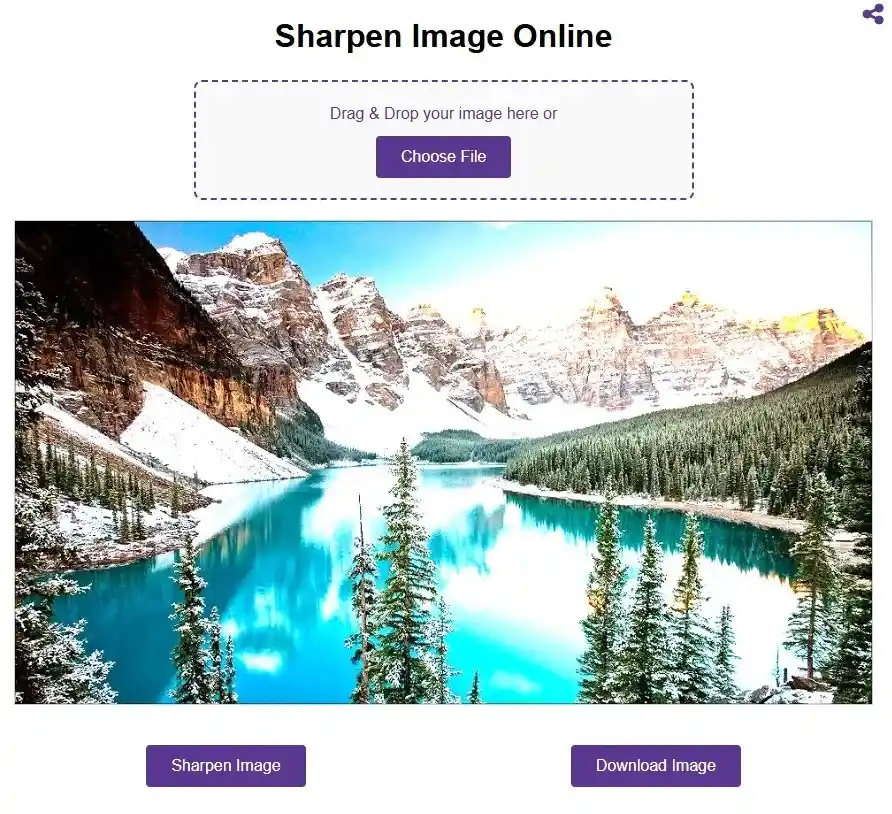
- Open the Tool: Navigate to sharpen tool in any modern web browser. No sign-in or account is required.
- Upload Your Image: Please drag and drop your photo file directly into the upload field, or use “Choose File” to select your photo. Your photo will be loaded in the preview field instantly.
- Apply Sharpening: Click on the Sharpen Image button to use the sharpening filter on your uploaded picture. This filter will work on your picture and will show you the improved picture in the preview.
- Review the Result: Verify the preview to make sure that the sharpening meets your expectations. In case your photo is of the kind in which edges are important - such as product photos or architectural pictures — be especially careful about that part of the picture.
- Download Your Sharpened Image: Click the Download Image button and download the enhanced photo on your computer. Your photo is now ready for usage or distribution.
Who Should Use an Online Image Sharpener?
The range of people who benefit from a sharpening tool spans nearly every category of visual work.
E-Commerce Sellers and Product Photographers
Image quality is a critical determinant of conversion rate in online shopping since the shopper will not be able to touch or feel the product. The shopper depends solely on the photo to see how the product looks like in terms of quality, textures, and finish. A slightly blurred photo gives an impression of lack of diligence, and thus affects the confidence of the purchaser. Sharp product images allow one to clearly see the textures of the fabric, leather, electronics' finishes, and the jewelry details. A good final effect could be achieved by combining the sharp photos with decorative borders placed on the photos.
Social Media Managers and Content Creators
The social media sites use their compression methods on uploaded photos, which decreases their sharpness even further than what was previously seen in the original image. Sharpening of an image prior to its uploading is done in order to overcome the loss in sharpness caused by these compression methods used on the platform side.
Graphic Designers and Brand Teams
Designers who deal with photos in layout designs, presentations, and other marketing material often require photos which will look good regardless of the size they are being displayed. Sharpening allows one to ensure that when an photo is placed beside clean typography or displayed in different zooms on various monitors, it will look sharp and will not appear soft compared to the rest of the design. In cases where the creative process requires an atmosphere or soft focus photos, the inverse of the above editing can be done as well.
Web Developers and UI/UX Designers
Websites and apps have lots of photos, and their performance, visual as well as technical, can influence the user experience greatly. Soft and vague images spoil the impression of professionalism of the product. Hero images, illustrations, and UI photography should be sharpened before release in order to look polished and high-quality in the actual display size.
Students and Educators
Academic works are now becoming visual works where presentations, reports, infographics, and even digital uploads can make use of visual elements. Students who have to use visuals like scanned documents that have come from poor quality sources can use the sharpen feature to enhance their visuals.
FAQs
Are my images uploaded to a server?
Not at all. Everything happens inside your web browser only by client-side processing. There will be no uploading of your picture to any remote server, no storage anywhere, and it will get deleted as soon as you refresh the page.
Will sharpening fix a severely blurry or out-of-focus photo?
Sharpening helps a great deal to improve the quality of slightly soft photos due to its ability to enhance edges; however, it cannot bring back any detail which wasn’t there in the first place. In cases where the photo has serious blurring problems due to being out of focus or having too much motion blur, sharpening will not help that much.
What is the difference between sharpening and unsharp mask?
Unsharp Mask is the method behind all the digital sharpening algorithms, including the ones which can be found online. In spite of the misleading name, it does not blur but sharpens the photo. This is done by first generating a blurred version of the photo, finding differences between this version and the initial one to find out where there are edges, and sharpening those edges by increasing their contrast. The Sharpen Image button on ImageProEdit uses this method automatically.
Can I sharpen the same photo multiple times to increase the effect?
Repeated use of sharpening has a cumulative effect, however, this happens quite rapidly and results in over-sharpening, which causes the appearance of halos, noise, and unnatural looks. One-time use is normally more than enough. When the image is still not sharp enough, it may be worth thinking about the softness of the original photo.
Is this Image Sharpen tool suitable for professional photo editing workflows?
Yes, because it can offer fast and efficient sharpening that easily fits into a professional workflow when performing routine sharpening operations, especially at the final stage before presenting or publishing the images. If the image needs some selective sharpening (that is, varying intensity in different regions), it would be better to use the specialized desktop program, but otherwise this free online tool gives professional results.
What is the difference between sharpening and blurring?
Sharpening is a process that enhances the contrast of edges to produce an image that looks sharper and more detailed. Blurring is an edit that reduces edge contrast to produce a softer image, and its applications include de-emphasizing backgrounds, creating artistic effects, and ensuring privacy.