JPG to WebP Converter
Upload one or more JPG images to convert them to WebP
Every image that is loaded on your website uses up bandwidth. Using up bandwidth means spending money, wasting time and losing out in the race for Google's top rankings. The same photo saved as a WebP instead of uploading a JPG would weigh 25 to 34% less. That doesn’t matter much for just one image. But if you have dozens or even hundreds of products, blog post images, and hero banners on your site? It all adds up.
The conversion of JPG files to WebP format is perhaps one of the simplest, yet most impactful ways to enhance the performance of any website. The ImageProEdit JPG to WebP Converter allows you to do it right from your browser, without a fee, an account, or even an upper limit on the file size, without adding any watermark on the output image. Simply upload your JPG, choose the quality setting, and resize to the desired maximum dimension to create a WebP file.
What Is WebP and Why Does It Matter?
WebP is a web-based image format created by Google and made available in 2010. While JPEG is an image format that was adopted back in 1992 and is intended for storing photographs generally, WebP is a format specifically designed with the purpose of minimizing the file size of the images transferred on the web.
The format supports three distinct compression modes in a single container:
Lossy compression: Uses lossy predictive coding technology developed through VP8 video compression codec technology for image compression. When visual quality is the same, the WebP image files are 25 percent to 34 percent smaller than JPG files as found out by Google research.
Lossless compression: Recreates pictures with pixel-perfect accuracy, making it useful for graphics, logos, and illustration images. Lossless WebP images are about 26 percent smaller in size than similar PNG images.
Transparency (alpha channel): It can be used both for lossy and lossless compression. WebP can become a replacement for both JPG (does not support transparency) and PNG (big file size) formats in one format.
Browser Support: Is WebP Safe to Use?
In 2025 and 2026, support for WebP is provided in nearly 96 to 97% of all browser engines around the world. Each major browser engine has WebP support from many years now:
- Chrome: Since version 23 (2012)
- Firefox: Since version 65 (2019)
- Safari: Since version 14 (2020, both for macOS and iOS)
- Edge: Since the switch to Chromium (2020)
- Opera: Since 2013
- Samsung Internet: Since version 4
The practical implication: for nearly every website serving a modern audience, WebP is safe to use as the primary image format today. The remaining browsers without WebP support are overwhelmingly old versions of Internet Explorer and legacy mobile browsers that represent a negligible share of web traffic for most sites.
How to Use the JPG to WebP Converter?
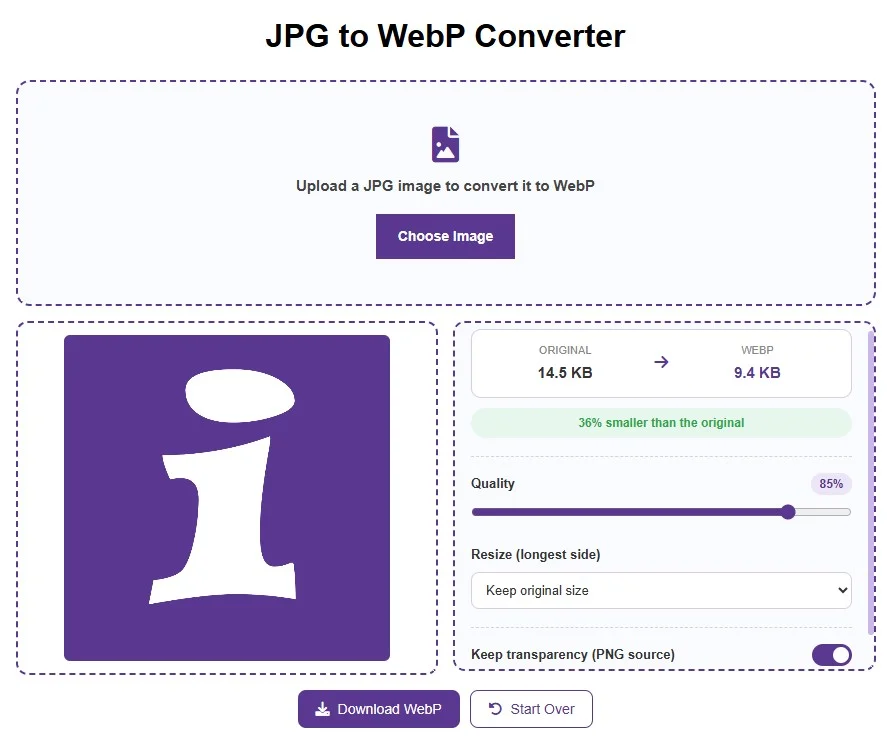
Step 1: Upload your JPG. Click the upload area or drag and drop your image file onto it. The tool accepts JPG, JPEG, PNG, WebP, and other common image formats as input. Your image appears in the preview panel immediately.
Step 2: Define the quality level. The quality scale ranges from 1 to 100 percent and has a default value of 85 percent. This parameter defines the degree of lossy compression of the generated image. At a quality level of 85 percent, the visual quality becomes almost indistinguishable from the original one for the most part of photographic images.
Step 3: Resize Option (Optional). Resize allows you to limit the longest side of your output image to 800, 1280, 1600, 1920 or 2560 pixels. Your image will be resized in proportion. For example, if you have an image that is 4000 pixels in width and you are serving it up to 1280 pixels on your website, then resizing your JPG to 1280 pixels will make the image file much smaller than compression, typically 70% to 85%.
Step 4: Transparency set up (for PNG files). Should you be converting a PNG that has a transparent background, enabling the Keep transparency toggle will ensure that the transparency will remain in your WebP file. Disabling it, however, will fill the transparency with white, reducing the file size at the expense of its transparency.
Step 5: Download your WebP image. Press on the Download WebP button. The file will be saved as converted-image.webp, which is ready for use on your site or image host.
Choosing the Right Quality Setting
The Quality Slider is the most effective control within the converter. Knowing what the different qualities represent will give you an edge when choosing the proper quality setting.
Quality 90 to 100: Lossless result. WebP is very similar to the original image. File sizes are the biggest within the WebP quality range, but they are smaller compared to the original JPG file. Use this quality range for images requiring the highest level of quality: portfolio photos, art prints, medical pictures, or other images that need editing.
Quality 75 to 89 (recommended for most web use): Superb quality with much smaller file size. Why does the default value of 85 fall into this range? Because, at 85 percent quality, a professional photographer, when comparing the original to WebP at 100 percent magnification, will be able to detect extremely slight compression artefacts in the regions with complicated textures, whereas on-screen in web viewing, the pictures will be absolutely the same. It is exactly the range that should be used for product photography, blog images, hero banners, etc.
Quality 60 to 74: Obvious deterioration when inspected at close quarters, although fine for use as thumbnails, previews, social networking pictures and anything else where the picture is small or not the center of attention on the web page. Files in this size range are incredibly small.
Quality below 60: Clear presence of compression artifacts. Suitable for only very small-sized thumbnails and situations when the file size has to be absolutely minimized.
A practical workflow: convert at 85 percent (default), preview, and reduce that figure if the file size remains too large, or increase it if you see artifacts in an important image.
Does Converting to WebP Affect Visual Quality?
When the quality level is set to 80 or above, it becomes impossible for humans to notice any differences between a JPG file and its corresponding WebP file under typical viewing circumstances. This is because both the JPG format and the WebP format employ lossy compression and eliminate only such information from an image that the human eye cannot perceive.
Fine texture detail: Texture at an extremely high frequency like individual fabric threads, hair detail, and stone grain may have some softening at quality levels lower than 75.
Smooth gradients: Very low quality settings may cause some banding artifacts to form in large areas where there is a smooth gradient of color.
Sharp edges and text: The WebP format deals with sharp edges and text more effectively than JPG when using similar settings. This means that it is more suitable for photos with text overlayed.
WebP will be indistinguishable from the original JPG image for almost all online images having quality 80 and 90 at any viewing resolution on the computer monitor. The difference in quality would only be visible when one tries to compare the original file and the compressed file at 200 to 400 percent zooming.
Transparency in WebP: Replacing Both JPG and PNG
UTransparency is one of the greatest features that make WebP superior to JPG. Transparency is not available in JPG files at all because if there is any transparent space in the picture, it is filled by color (most often white). That is why JPG is not fit for logos and various cutouts from products.
WebP supports 8-bit transparency in both lossy and lossless modes. Transparent PNG saved as lossy WebP will be three times smaller than the same transparent PNG image. Transparent PNG saved as lossless WebP will be 26 percent smaller than the same transparent PNG image.
This converter works properly with transparency. If you upload a PNG image with a transparent background, the Keep transparency option will maintain the alpha channel in the resulting WebP file. This WebP file can be easily used anywhere instead of the original PNG file, behaving in the same way but being much smaller in size.
FAQs
What is a WebP file?
WebP is an advanced image format created by Google and used for efficient web transmission. The images compressed in this format occupy less space than JPG and PNG of the same quality and support transparency; WebP is supported by almost 96-97% of the currently active browsers.
How much smaller is WebP than JPG?
WebP lossy images are 25 to 34 percent smaller than equivalent JPG images at the same visual quality, according to Google research. At quality 85, a 450KB JPG typically becomes a 290 to 340KB WebP file.
Does every browser support WebP?
All popular web browsers including Chrome, Firefox, Safari 14 and higher, Edge, Opera, and Samsung Internet, are compatible with the WebP file format. At the moment browser support is around 96% to 97% globally in the years 2025 and 2026. For the remaining few browsers, an IMG tag with JPG as backup is used.
What quality setting should I use when converting JPG to WebP?
Quality setting of 75 to 90 is what’s required for most images on the web. Default quality setting of 85 is an established standard which gives you great picture quality and saves some file size too. Setting it higher from 90 to 100 works for photography galleries and product images. Set it lower from 65 to 75 for thumbnails.
Will WebP improve my Google PageSpeed score?
Yes, certainly. Google PageSpeed Insights and Lighthouse explicitly indicate JPGs and PNGs as candidates for being served in future formats such as WebP. The process of converting critical images from JPG to WebP generally results in an increase in PageSpeed scores by 5-15 points, based on how many and what sizes the images are on the page. It positively impacts the LCP (Largest Contentful Paint) metric.
You may also want to use: