Rotate Image Online
Upload an image to rotate and flip or change orientation of it
Some of the most frequent and easiest to fix problems in digital photography include those related to the orientation of images (rotate image). This is the case where an image taken using a smart phone looks right on the phone screen but becomes sideways when uploaded on the web page. The document that was scanned becomes tilted two degrees.
With just a click, the ImageProEdit Rotate Image tool solves all of these issues. You can rotate your image by 90 degrees clockwise or counterclockwise, by 180 degrees, horizontally, vertically, or even specify an angle to make sure your image’s horizon is perfectly straightened. No installation required. No need for signing up. No watermarks added.
How Rotate Image tool works?
The rotate image tool provides four standard operations and one custom angle mode.
90 degrees clockwise: A quarter-turn to the right. A portrait photo lying on its left side becomes upright.
90 degrees counterclockwise: A quarter-turn to the left. A portrait photo on its right side becomes upright.
180 degrees: The image is turned completely upside-down. A photo taken with the camera held inverted is corrected to its proper orientation.
Flip horizontal (mirror): The Image is flipped across the vertical axis. Left turns into right. Text is rendered unreadable. For creative mirror effects and fixing selfie cameras.
Flip vertical: Top and bottom exchange. Used for water-reflection effects and correcting certain scanner errors.
Custom angle: Set any value from -180 to +180 degrees. Used for straightening a slightly crooked horizon or aligning a tilted document scan.
How to Change image orientation?
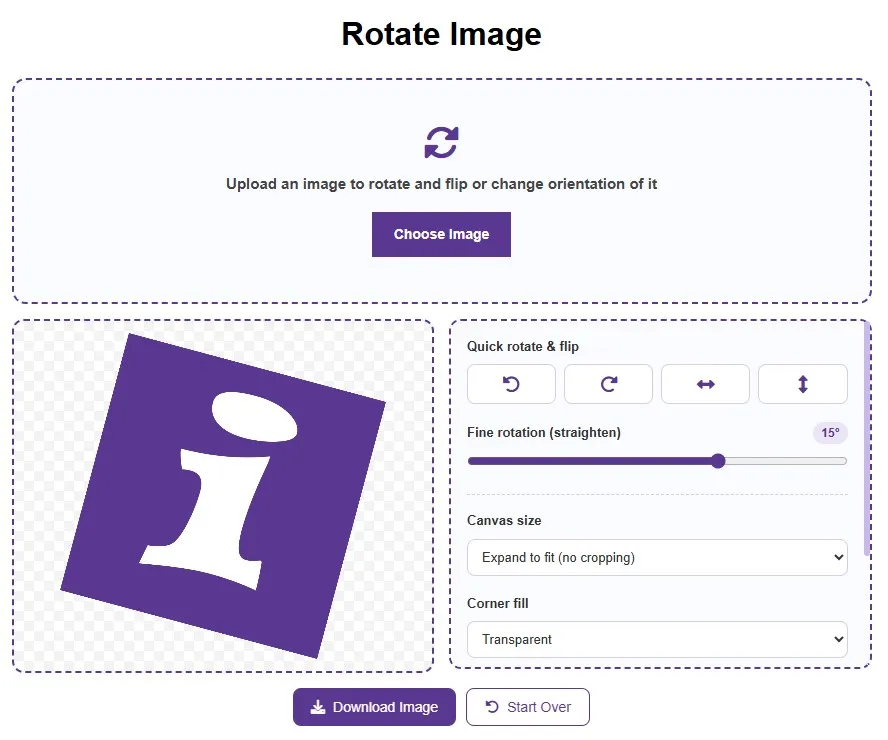
- Step 1: Upload your image. Click the upload area or drag and drop your file. JPG, JPEG, PNG, and WebP are all accepted.
- Step 2: Choose your operation. Press the 90 degree clockwise, counter-clockwise, or 180 degree button to rotate an image to a standard orientation. Click the flip button to fix a mirrored image. For rotating by a specific angle, drag the slider or enter a value.
- Step 3: Preview. The result appears instantly. For custom angles, confirm the horizon or reference line reads as level.
- Step 4: Download. Save the corrected image as JPG or PNG. No watermark is applied.
Why Photos Appear Sideways: The EXIF Orientation Problem
The most frequent reason images need an orientation fix is not that they were taken at the wrong angle. It is that EXIF orientation metadata is being misread, stripped, or ignored.
When taking a picture using a smartphone placed vertically, the image is captured by the camera using the landscape mode that comes naturally to it. The camera does not need to reorganize the pixels at the time of capture but captures the image in landscape format and embeds a metadata item known as the EXIF Orientation.
However, for phone gallery, the tag is read accurately. However, problems come when the image is moved to another location. Most web browsers, content management systems, email clients, and old programs fail to read or remove this EXIF tag altogether in their processes. Consequently, the raw landscape data pixel is shown without correction, hence the portrait is now rotated.
The most common EXIF Orientation values:
Value 1 (Normal): The image is stored correctly and displayed as-is.
Value 3 (Rotate 180): The image is stored upside-down.
Value 6 (Rotate 90 CW): The classic portrait smartphone photo problem and the most frequently encountered orientation issue.
Value 8 (Rotate 270 CW): The image needs a 90 degree counterclockwise correction.
The permanent fix is to physically rearrange the pixel data to the correct orientation using this tool. After the pixels are correctly arranged, the EXIF tag is reset to Value 1 (Normal) and the image displays correctly everywhere regardless of EXIF support in the viewing software.
Rotation and Flip: The Key Distinction
Rotation (also called turning) and flipping are related but meaningfully different operations. When the image is rotated, there will be an alteration of its position according to a particular angle relative to its center point. The spatial arrangement of elements in the image will be retained but not mirrored. Words written on the image will be tilted but still legible.
Flipping will result in reflection on the image about an axis. Horizontal flipping results in reflection from left to right, which will create a mirror image. Vertical flipping results in reflection from top to bottom. In the case of horizontal flipping, an image facing to the right now faces left.
A selfie taken using a front-facing camera is normally a mirror image of your intention. This can be achieved by flipping the image horizontally.
An image captured while holding the camera sideways requires rotation, not flipping. Flipping a sideways image will result in a mirrored sideways image.
A scanned document that comes out mirrored with reversed text needs a horizontal flip, not a turn.
Straightening Crooked Photos
Adjusting angles manually would be highly advantageous when it comes to straightening horizons. The picture captured by hand will not have its horizon completely straight; even a tilt of 1-2 degrees becomes apparent in pictures of seas, landscapes, or architecture.
How to straighten a tilted horizon:
- Step 1: Upload the photo and identify a reference line that should be horizontal such as the horizon, the top of a wall, or the edge of a table.
- Step 2: Use the custom angle slider. If the reference line tilts down to the right, move counterclockwise (negative values). If it tilts down to the left, move clockwise (positive values).
- Step 3: Most crooked photos need only 1 to 5 degrees of correction. Small adjustments dramatically improve composition while quality impact is negligible.
- Step 4: Any adjustment by a non-multiple of 90 degrees creates empty corner areas. These are typically filled with a background color or the image is cropped slightly.
Use Cases for photo rotator
Beyond correction, deliberate image orientation changes are creative tools across photography and design.
Dutch Angle and Cinematic Tilt
The Dutch angle is an effect whereby the image is tilted, thus creating a diagonal arrangement of objects that create drama and tension. This can be done through the custom angle adjustment of 10-30 degrees post-production. When done to a portrait, tilting it by 15-25 degrees creates drama from what would be a simple image.
Diagonal Backgrounds for Design
Rotating an image by a few degrees and cropping it will create an engaging diagonal background for the design layout of text. It is useful for creating social media graphics, posters, and presentation slides where the background imagery adds motion to the headlines.
Mirror and Symmetry Art
Horizontal flipping creates a reflection which, when combined with the original on either side, makes perfectly symmetrical images. Architectural photography, nature photography involving mirrors, and portrait photography provide some of the best examples when bilaterally symmetrical photographs are formed using reflections of one-half of the photograph.
Vertical Reflection Effects
Vertical flipping makes the picture appear to be upside down. This, together with the original positioned at the top, gives the impression that there is an image of the reflection of nature on water. For instance, you will get a picture that appears to have a reflection of the
Frequently Asked Questions
How do I fix a sideways image online for free?
Open online rotate image tool at ImageProEdit. Upload your JPG, PNG, or WebP file, click the orientation button you need, and download the result. No account required and no watermark added.
Why does my photo appear sideways when I upload it?
Most of the sideways issues faced in photographs are usually because of the EXIF orientation data tag. The smartphone saves the photos in the pixel data in the landscape format, and the EXIF tag specifies how that photo should be displayed. If this tag is ignored or removed by the software, then the photo would be shown sideways.
What is the difference between rotating and flipping?
Rotation rotates the image around its center point without reflecting. In flipping, the image is reflected about an axis to create a mirror image. Vertical flipping makes the image appear upside down, while horizontal flipping mirrors it left to right. Flipped images have their texts in reverse order and therefore cannot be read, while turned images can still be read.
Does correcting image orientation reduce quality?
A rotation of precisely 90, 180, or 270 degrees causes no loss of information. Information of each pixel gets rearranged without getting encoded again. Interpolation is required for custom rotations and causes a little blurring effect but is hardly visible in normal cases. PNG format should be used to save the output.
How do I straighten a crooked horizon?
Upload the picture and play with the custom angle slider. Locate the line which needs to be horizontal and observe its tilt – whether it is tilting downward towards the right side or tilting downward towards the left side, adjust the slider accordingly – clockwise or counterclockwise.